

Desk TV buying guide
How to Set Up an OLED TV as a Desk Monitor
Living with a 42- or 48-inch OLED TV at your desk: a burn-in routine that works, which arms and mounts can hold it, what to do about sound, and the PC, Mac, and console settings that matter.
Buying the TV is the easy part. Making a 42- or 48-inch OLED work as a daily desk display takes a little setup: where it sits, what holds it up, what you hear, and a few habits that keep static desktop elements from wearing the screen. This guide covers all of it, with the three picks from our lineup that are easiest to live with at a desk.
These picks and fit scores are an editorial synthesis of published reviews and manufacturer specs, not our own testing; where an outlet measured a different size of the same TV, we say so. Prices are approximate Amazon prices seen on October 7, 2026, not live quotes, so check the current price before you buy.
Disclosure: As an Amazon Associate we earn from qualifying purchases. “Check price” buttons on this page are affiliate links, at no extra cost to you; they never change the ranking.
The short list
| # | Best for | Model | Approx. price | |
|---|---|---|---|---|
| 01 | Easiest to set up at a desk | 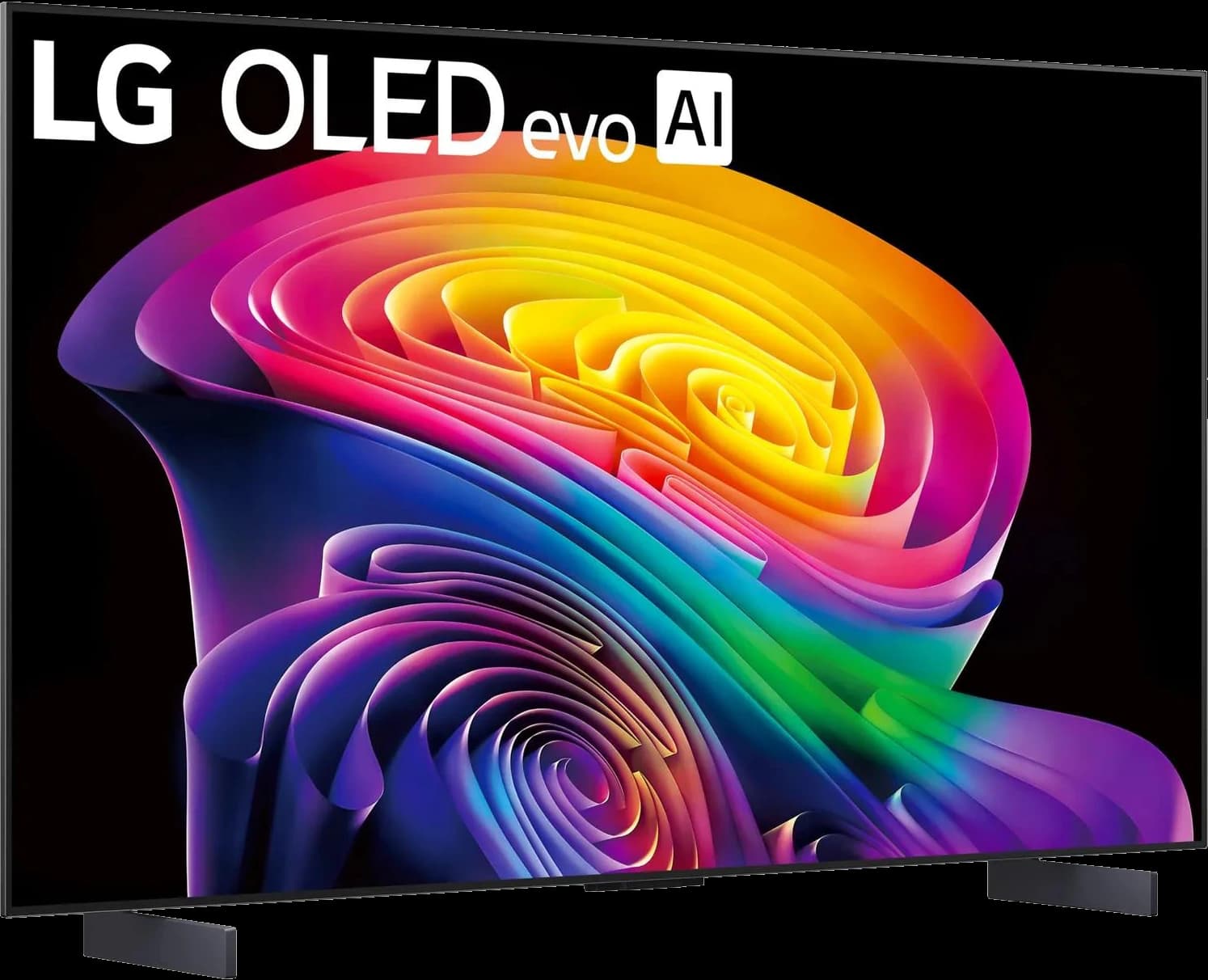 | 42" 4K OLED TV, 165Hz | ~$999.99 |
| 02 | Same desk-friendly stand for less | 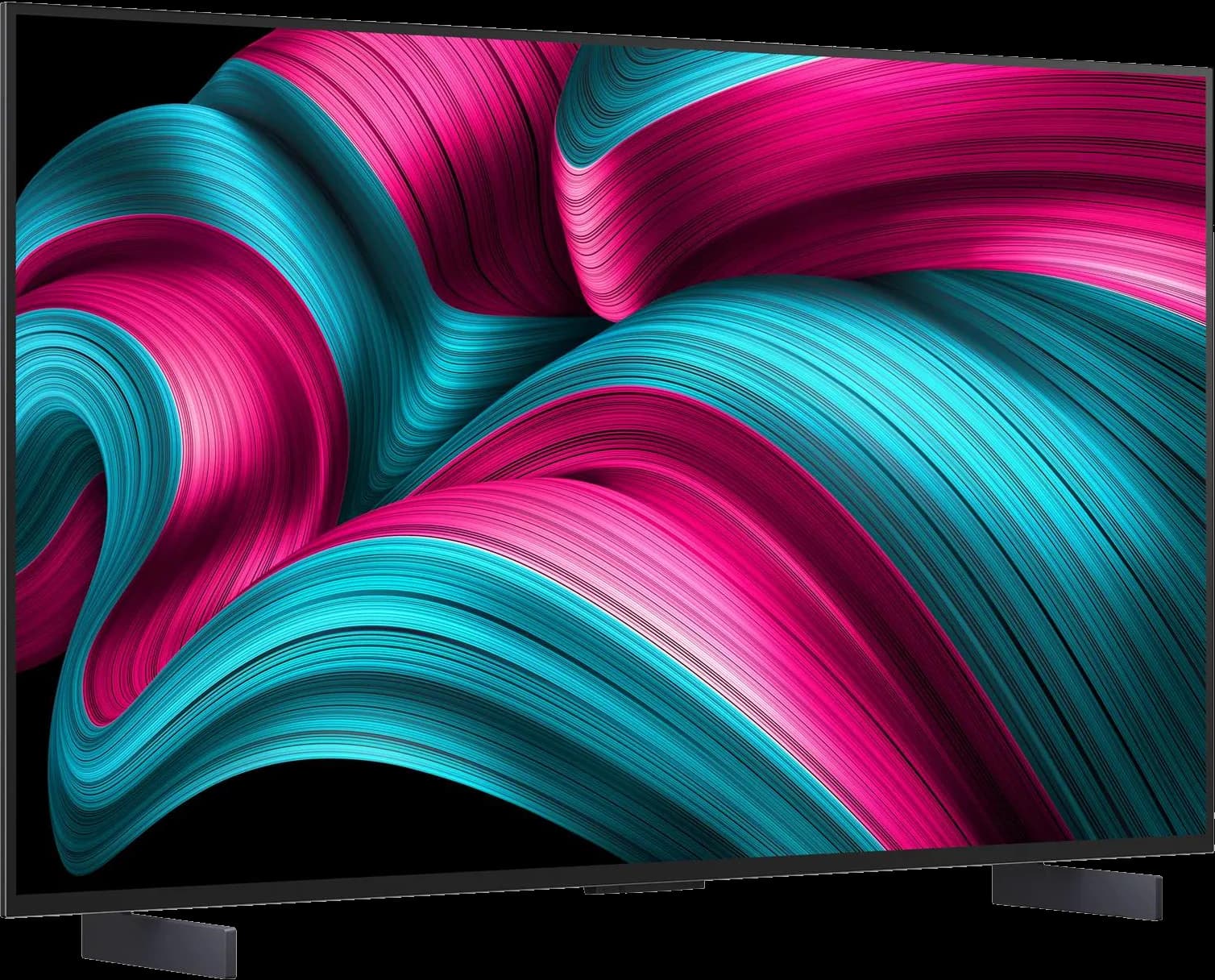 | 42" 4K OLED TV, 144Hz | ~$849.95 |
| 03 | Easiest 48-inch to mount | 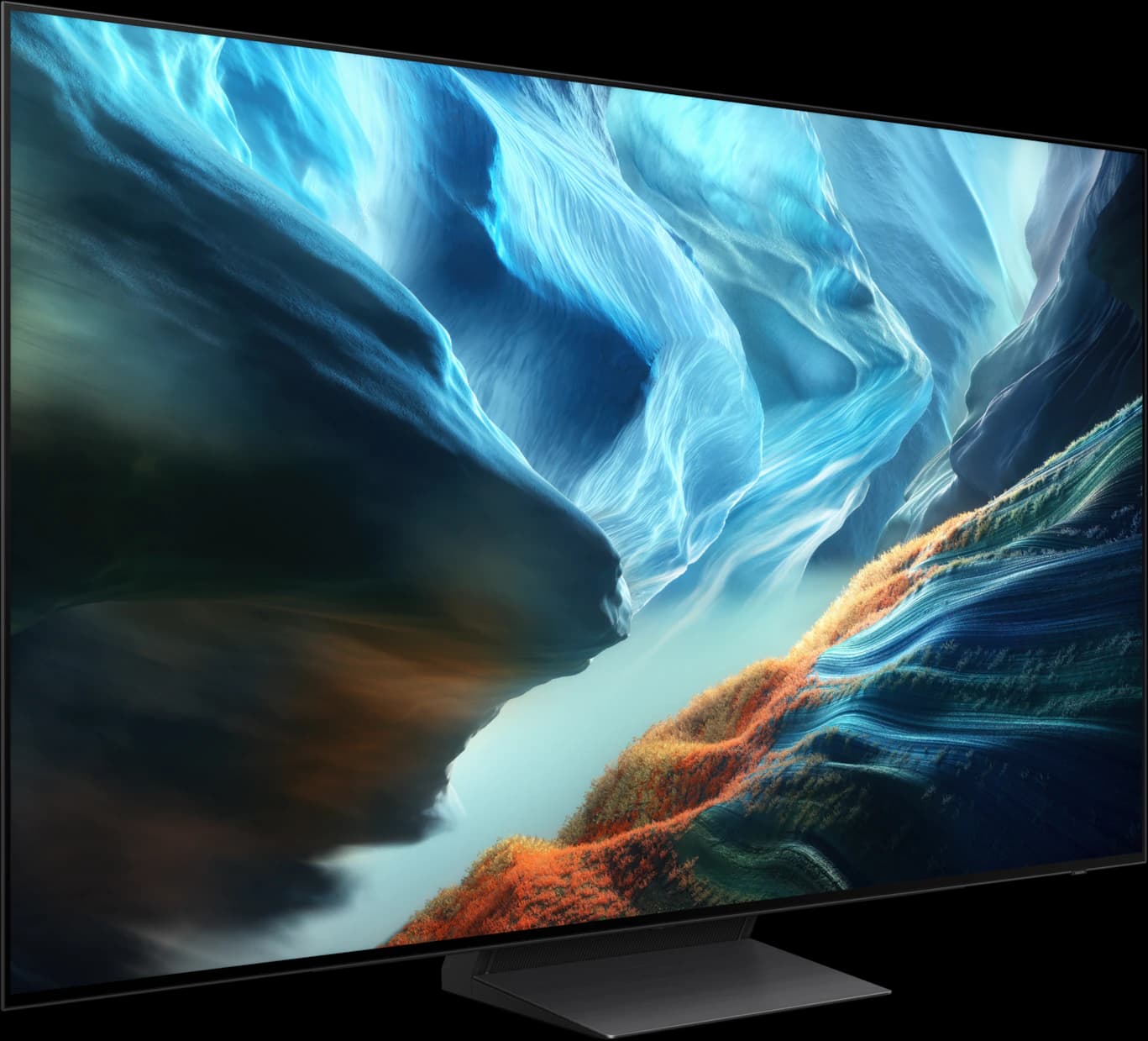 | 48" 4K matte OLED TV, 165Hz | ~$1,097.99 |
Approximate Amazon prices seen October 7, 2026, not live quotes.
Ranked
Our picks
- 01
Easiest to set up at a desk
LG C6 42-inch OLED
- 42" 4K OLED
- 165Hz
- 4 ports
- ~$999.99
Light (21.6 pounds without the stand), with shallow 6.7-inch-deep feet and a 300 x 200 VESA pattern, plus a “PC” input label that RTINGS found cuts input lag. ~$999.99 from Amazon.
Pros
- Pro: RTINGS' top TV for use as a PC monitor (Sep 2026)
- Pro: Four HDMI 2.1 inputs: an Xbox, a PS5 Pro, and a PC plugged in at once
- Pro: Up to 165Hz from a PC, with G-Sync, FreeSync, and HDMI VRR
Trade-offs
- Trade-off: No Brightness Booster at 42 inches (LG); RTINGS says it isn't as bright as bigger C6 sizes
- Trade-off: Glossy screen reflects windows and lamps behind you
- Gaming
- 5 out of 5
- Desk fit
- 5 out of 5
- Work
- 4 out of 5
Editorial fit scores, 1–5, from published reviews and specs — not lab measurements.
Check priceAffiliate link to Amazon. Price approx., seen Oct 2026.
Read the breakdown: LG C6 42-inch OLED - 02
Same desk-friendly stand for less
LG C5 42-inch OLED
- 42" 4K OLED
- 144Hz
- 4 ports
- ~$849.95
The same feet, weight, and VESA pattern as the C6 42, at 144Hz instead of 165Hz, for ~$849.95 from a third-party seller. What Hi-Fi warns its low feet mean a soundbar in front blocks the screen.
Pros
- Pro: What Hi-Fi's best 42-inch OLED (a 2025 award winner)
- Pro: Four full-bandwidth HDMI 2.1 ports; 144Hz from a PC
- Pro: Low input lag at 144Hz (RTINGS)
Trade-offs
- Trade-off: Dimmer than the C6: about 240 to 250 nits in PC mode (RTINGS)
- Trade-off: Sold by a third party on Amazon; LG.com was out of stock
- Desk fit
- 5 out of 5
- Gaming
- 4 out of 5
- Work
- 4 out of 5
Editorial fit scores, 1–5, from published reviews and specs — not lab measurements.
Check priceAffiliate link to Amazon. Price approx., seen Oct 2026.
Read the breakdown: LG C5 42-inch OLED - 03
Easiest 48-inch to mount
Samsung S90H 48-inch OLED
- 48" 4K OLED
- 165Hz
- 4 ports
- ~$1,097.99
At 23.4 pounds without the stand, it's the lightest 48-inch here, and its matte screen copes with office lighting. Its pedestal is 10.4 inches deep, so an arm or wall mount suits it. ~$1,097.99 from Amazon.
Pros
- Pro: Matte Glare Free coating: RTINGS' pick for bright rooms over the LG C6
- Pro: 165Hz on all four HDMI 2.1 ports; FreeSync Premium Pro and G-Sync
- Pro: RGB tandem panel at 48 inches, per RTINGS
Trade-offs
- Trade-off: No outlet has reviewed the 48-inch yet; measurements come from 55- and 65-inch sets
- Trade-off: Matte coating lifts blacks slightly in a lit room (Tom's Guide, CNET)
- Gaming
- 5 out of 5
- HDR
- 4 out of 5
- Value
- 4 out of 5
Editorial fit scores, 1–5, from published reviews and specs — not lab measurements.
Check priceAffiliate link to Amazon. Price approx., seen Oct 2026.
Read the breakdown: Samsung S90H 48-inch OLED
Disclosure: “Check price” buttons are Amazon affiliate links; we may earn a commission at no extra cost to you. It never changes the ranking.
How we chose
This guide ranks for living with the TV at a desk rather than for picture quality: weight, stand footprint, VESA mounting, how the TV behaves as a PC display, and how much light it can handle. Picture-first picks are in our main guide. The setup advice draws on RTINGS' burn-in research and monitor-style TV reviews, TFTCentral and TechSpot's reviews of the 42-inch LG C2 as a monitor, manufacturer specs, and Ergotron's published arm ratings.
Where it sits
Put the screen as far back as your desk allows. TV feet sit it low, so TechSpot suggested raising the 42-inch LG C2 by 10 to 15 cm, which an arm or a sturdy riser does. We'd plan on at least 30 inches from your eyes to a 42-inch screen, and roughly three feet or more for a 48-inch, so the corners stay in view without turning your head.
Check the footprint before you order. The 42-inch LGs are 36.7 inches wide, on feet 28.3 inches apart and 6.7 inches deep. The 48-inch Samsung S90H's pedestal is narrower but 10.4 inches deep, and the 48-inch LG C6's is 18.5 by 9.1 inches.
Arms and wall mounts
These TVs use a 300 x 200mm VESA pattern and weigh 21.6 to 32.8 pounds without their stands, more than most monitor arms are built for. Ergotron's LX arm, for example, is rated for 7 to 25 pounds and 75 or 100mm plates. Its heavy-duty HX is rated to 42 pounds, which covers every TV here on weight, but check that the arm or an adapter plate supports 300 x 200 before you buy.
For a 48-inch, a wall mount behind the desk is often the better answer: it puts the screen farther away, frees the desktop, and takes the weight off a clamp. Leave room behind it for thick HDMI cables.
A burn-in routine that works
RTINGS' long-term testing found that recent OLED TVs still burn in with static content, and it names desktop users among the people for whom burn-in remains a real consideration. Neither LG nor Samsung says its one-year TV warranty covers burn-in. The aim is simple: don't leave the same bright elements in the same place for hours.
- Auto-hide the Windows taskbar or macOS dock, and use dark mode where you can.
- Use a dark or slideshow wallpaper and hide desktop icons.
- Set the PC's display to sleep after a few minutes idle.
- Lower SDR brightness for office work; RTINGS suggests that reduces wear.
- Leave the TV's pixel shift and logo dimming on (LG's OLED Care; Samsung's Panel Care).
- Let the TV run its pixel refresh: LG's runs at power-off after every four hours of use, so turn it off with the remote rather than at the wall.
- Mix in games and video. If your workday is ten hours of static spreadsheets, a regular monitor for work is the safer choice.
Sound
Built-in TV speakers are the weak spot at a desk; What Hi-Fi's main complaint about the 42-inch C5 is its 20W sound. The easiest upgrades are a pair of powered desktop speakers beside the screen, a headset on the console or PC, or a compact soundbar on eARC or optical out. With the 42-inch LGs' low feet, a soundbar in front blocks the bottom of the screen, so put speakers beside it or raise the TV on an arm.
PC and Mac settings
Connect the PC to an HDMI 2.1 port with a cable rated for it, and pick the TV's top refresh rate in Windows display settings: 165Hz on the LG C6s and Samsung S90H, 144Hz on the C5, 120Hz on the S85H. On LG TVs, set the input's label to “PC”; RTINGS measured far lower input lag with it in some picture modes.
Start at 100% scaling on a 42-inch for maximum space, or 125% if text feels small; at 48 inches, 125% suits most people. TFTCentral recommended PC mode and sharpness at zero for the 42-inch LG C2. Run the ClearType tuner, since RTINGS notes ClearType doesn't render properly on WOLED subpixel layouts. On a Mac, RTINGS ran the 48-inch C6 at 165Hz with VRR over HDMI.
Console settings
On an Xbox Series X or PS5 Pro, turn on 120Hz output and VRR in the video settings. The TVs' auto low-latency mode switches to game mode when a game starts. If you play Xbox games in Dolby Vision, the LG TVs support it; the Samsungs use HDR10+ instead and don't offer Dolby Vision.
Head to head
Compare these picks
- LG C6 42-inch vs LG C5 42-inchBoth are picks here: the LG C6 42-inch OLED (Easiest to set up at a desk) and the LG C5 42-inch OLED (Same desk-friendly stand for less).
- LG C6 42-inch vs LG C6 48-inchThe LG C6 42-inch OLED (Easiest to set up at a desk here) against the LG C6 48-inch OLED.
- LG C6 48-inch vs Samsung S90H 48-inchThe Samsung S90H 48-inch OLED (Easiest 48-inch to mount here) against the LG C6 48-inch OLED.
Frequently asked questions
How far should I sit from a 42-inch TV at a desk?
We'd plan on at least 30 inches from your eyes to the screen, more if your desk allows, so the corners stay in view without turning your head. For a 48-inch, roughly three feet or more.
Does turning the TV off at the wall stop burn-in protection?
It can. LG's pixel refresher runs when the TV is switched off after every four hours of use, which needs standby power. Turn the TV off with the remote and leave it plugged in.
What monitor arm can hold a 42-inch OLED TV?
A heavy-duty arm rated for at least the TV's weight (21.6 pounds for the 42-inch LGs) that supports or adapts to a 300 x 200 VESA pattern. Ergotron's HX is rated to 42 pounds; its standard LX tops out at 25 pounds and 100mm plates.
Should I use dark mode on an OLED TV monitor?
Yes. Dark mode and a dark wallpaper put less wear on the screen than bright white windows, and an auto-hiding taskbar or dock removes the most static element on the desktop.
Related guides
Disclosure: Our picks are independent and editorial — a synthesis of published reviews and manufacturer specs, not our own lab measurements. Prices are approximate Amazon prices seen October 7, 2026. As an Amazon Associate we earn from qualifying purchases made through links on this page, at no extra cost to you.